Posts

Restart Computer Failed - SQL Installatoin

Image
Problem Description:- Trying to install MS SQL Server setup fails at the Setup Support Rules page on the Rule "Restart Computer". The following error message appear on screen: "Restart computer failed". Solution:- Please follow the steps below:- I) Run Regedit, II) Open HKEY_LOCAL_MACHINE\SYSTEM\CurrentControlSet\Control\Session Manager III) Double click "PendingFileRenameOperations" IV) Press the key "Delete" on your keyboard. V) Press OK and close the registry. VI) Try now to run SQL Server 2008 setup.

Find Size Of Tables In SQL Database

Image
When we are working with SQL Server databases, very often we will come across the problem of abnormal database size growth. In such a situation we need to get the size of tables in the database to identify the abnormal sized tables to figure out the cause of growth. _______________________________________________________________________________________________________________________ Here we will go through some of the easiest methods to get the size of all the tables in a database. This will help you to identify the tables with abnormal size. _______________________________________________________________________________________________________________________ 1. Find Size Of Tables Using SSMS Standard Report The easiest way to find the size of all the tables in a database is to use the SQL Server Management Studio’s (SSMS) standard report called Disk Usage by Table. To access the disk usage table: ________________________________________________________________________________...

How to Change Edit 200 Rows and Select Top 1000 Rows Default Value in SQL Server Management Studio

Image
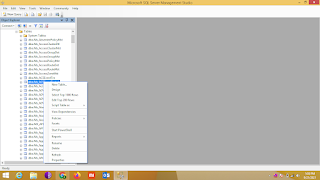
How to Change Edit 200 Rows and Select Top 1000 Rows Default Value in SQL Server Management Studio 1. Login to SQL Server Manatement Studio 2. Go to Tools Menu and Options 4. To make the necessary changes within the Options Dialog box, Expand SQL Server Object Explorer -> Commands. 5. Specify the new value for Value for Edit Top Rows Command and Specify the Value for Select Top Rows Command. In the below example we have set the value as 50 for both options 6. Finally to save the changes click OK to save the changes to SSMS configuration. 7. Once you have made the above mentioned changes right click the table to see the changes as shown in the snippet below

Function key freezes AutoCAD while in a draw or modify command

Function key freezes AutoCAD while in a draw or modify command Issue: AutoCAD freezes when pressing F8, or any other function key, while in an active command. Solution: Do the following: Install the latest updates for AutoCAD. For AutoCAD 2017, install the 2017.1.2 update. For AutoCAD 2016, install the AutoCAD 2016.0.11 Update. As an alternative, to work around the issue without the updates, do one or more of the following: On the command line in AutoCAD, type TEMPOVERRIDES and change the value to 0 (zero). Turn ortho and other functions on and off via the Status Bar. Type in ORTHO at the command line instead of using the function key. Rollback the Anniversary update (Microsoft allows only 10 days to do this

Fix 'Windows Cannot Be Installed to This Disk MBR'

Image
 Fix : Windows cannot be installed to this disk the selected disk has an MBR partition table on EFI file system 1. Download rufus-3.5p (link: https://github.com/pbatard/rufus/releases/download/v3.5/rufus-3.5p.exe) 2. Insert Pen drive and Open Refus-3.5p 3. Select Disk ISO Image  4. Select Partition Scheme MBR 5. Click Start After complete this process can install OS in same system without any data loss

MS Office 2013 Activation Command Line

 Microsoft Office Activation Command Line Permanently Activate Microsoft Office 2013 Without Any Software And Product Key Step 1. Open Notepad copy and paste below mention commands and save msoffice.cmd the right click msoffice.cmd and click run as administrator @echo off title Activate Microsoft Office 2013 Volume for FREE!&cls&echo ============================================================================&echo #Project: Activating Microsoft software products for FREE without software&echo ============================================================================&echo.&echo #Supported products:&echo - Microsoft Office 2013 Standard Volume&echo - Microsoft Office 2013 Professional Plus Volume&echo.&echo.&(if exist "%ProgramFiles%\Microsoft Office\Office15\ospp.vbs" cd /d "%ProgramFiles%\Microsoft Office\Office15")&(if exist "%ProgramFiles(x86)%\Microsoft Office\Office15\ospp.vbs" cd /d "%ProgramFiles...

Cisco WebEx Room Kit Series Configuration - Step by Step Simple method

CISCO   WebEx   Room   Kit   Series. -  Configuration - Step by Step Thereafter follow the steps :   Basic Steps Using Touch 10 for Device : Welcome Screen -> Change Language -> English (United Kingdom) -> Back Welcome Screen -> Start No Network Connection Screen -> Next Ethernet Settings -> Disable DHCP & Enter All Static IP Address Details -> Next Select “Other Settings” Select Advanced Set-Up -> Next Change Time Zone -> Southern Asia -> Colombo, New Delhi -> 12 Hours / 24 Hours -> Next Skip Step related to using Device as External USB Camera -> Next Adjust Camera View (Manual) -> Next Sound Check (Auto) -> Next Set-Up Complete Screen -> Next “Welcome” Screen appears on Touch 10.   Web-Login using IP Address of Device : Setup -> Configuration -> System Unit -> Name -> Define Name as per Customer for Identification. Setup -> Configuration -> Conference -> Default Call Protocol -...